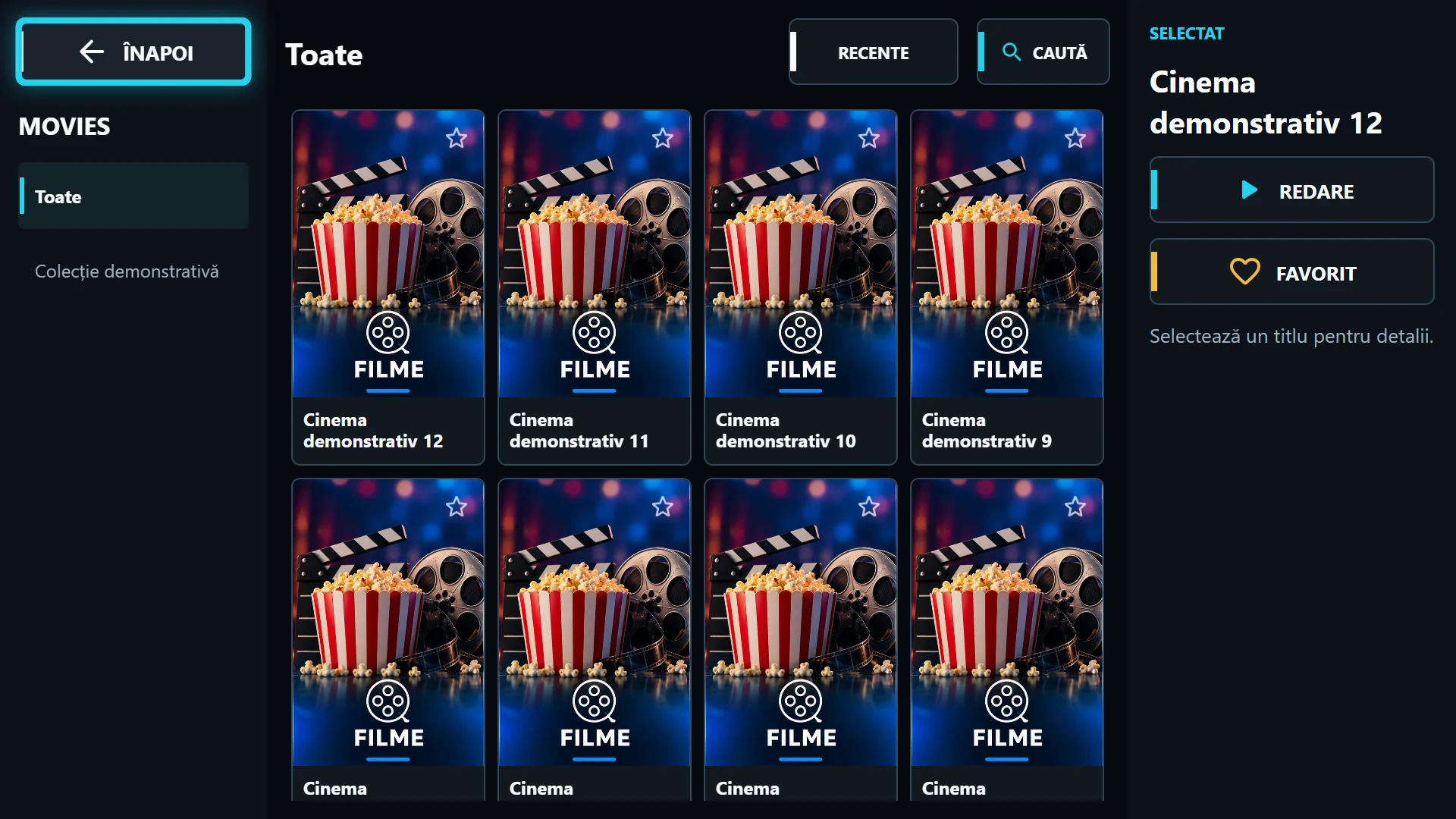
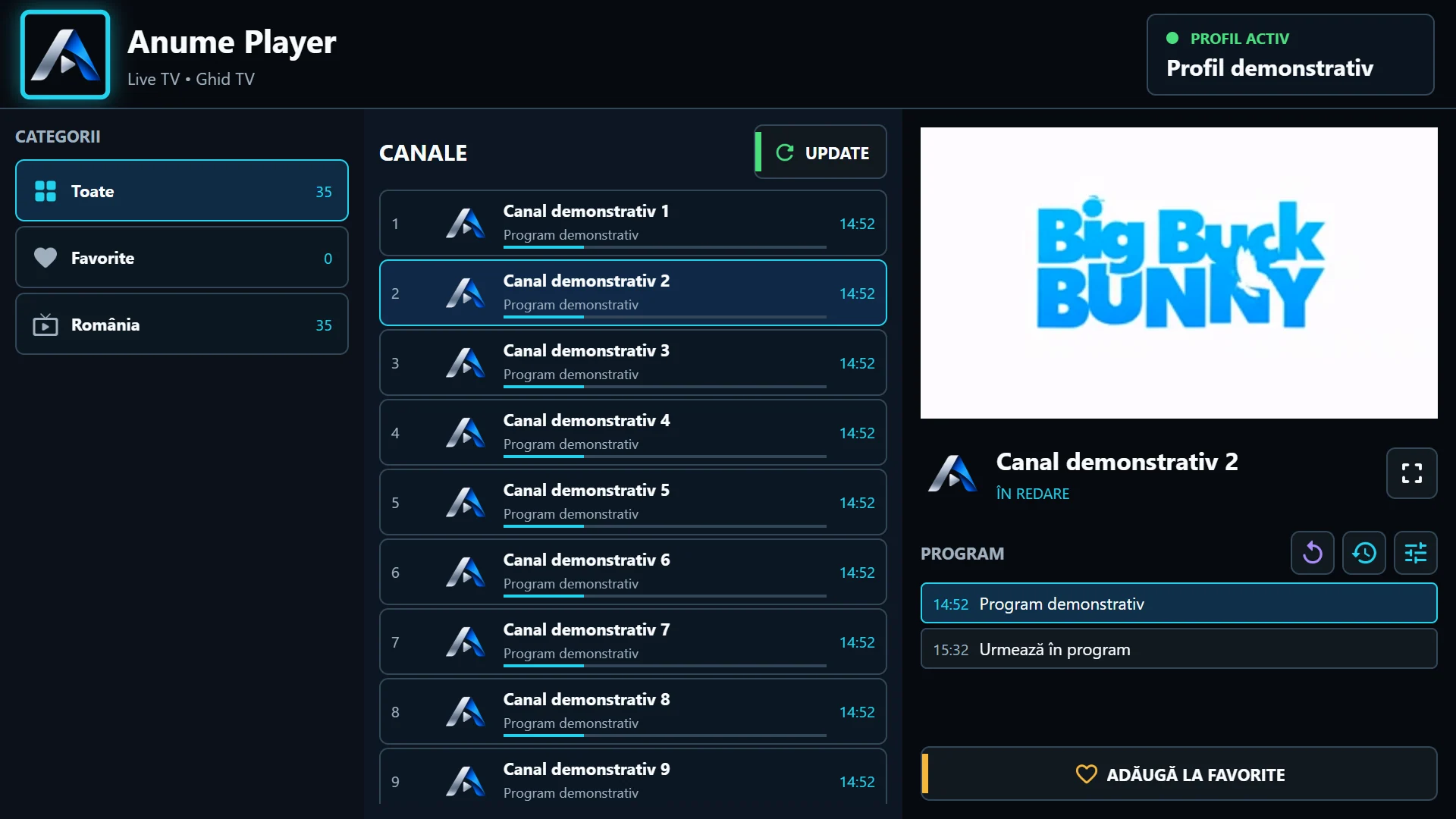
Compare the menu and the video picture
Check whether text, focus indicators and app buttons are cropped too. If the Fire TV interface or another HDMI device is affected, start with display settings. If only a movie has bars or cropping, check that content’s format.
An emulator screenshot can look correct while a physical TV crops the edges. A photo of the complete screen, including all four corners, helps diagnosis. Keep playlist credentials and identifiers you do not wish to share out of the frame.
Check display settings before changing the app
Look in TV settings for picture framing or showing the full HDMI input. Names differ between manufacturers and models. Avoid Zoom when you need the complete menu and check the connected device’s output resolution.
Change one option and reopen the menu to compare. If the app edition provides Margins, adjust it gradually after checking the TV. A value copied from another model is not necessarily right for your screen.
Test more than the homepage
After adjustment, check Live TV, search, movie details and player options. The lowest button should stay visible and reachable by remote. Correct framing should not require a mouse to reach a control.
If menus fit but text overlaps on one screen, report the screen and app version. Shrinking the whole picture is not a good fix for a single broken row. Include the photo, resolution, TV model and Firestick model.